

Creating a short link
Every short link has a destination (where it redirects to) and a slug (the unique identifier).1
Open the link creator
Navigate to Links in the sidebar and click Create Link.
2
Choose your domain
Select which domain to use for your link. You can use
h0p.co or any custom domain you’ve configured.3
Enter your destination
Enter the URL, email address, or phone number you want the link to redirect to.Supported destination types:
- URL - Standard web addresses (
https://example.com) - Email - Opens mail client (
mailto:hello@example.com) - Phone - Opens phone dialer (
tel:+1234567890)
4
Set your slug
Choose a custom slug or let H0p generate a random 6-character one.
5
Save your link
Click Create to save. Your link is immediately active.
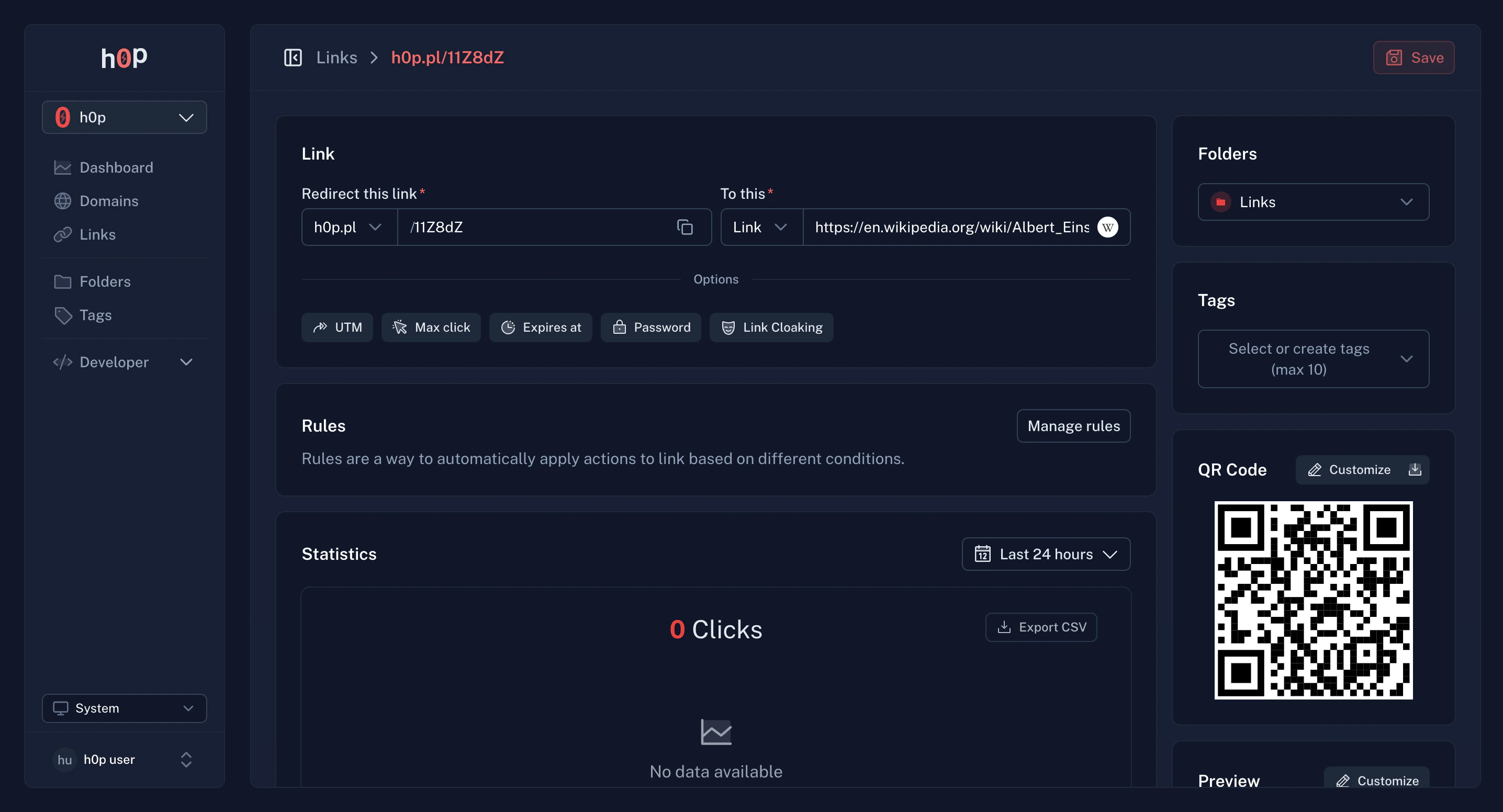
Link settings
Basic settings
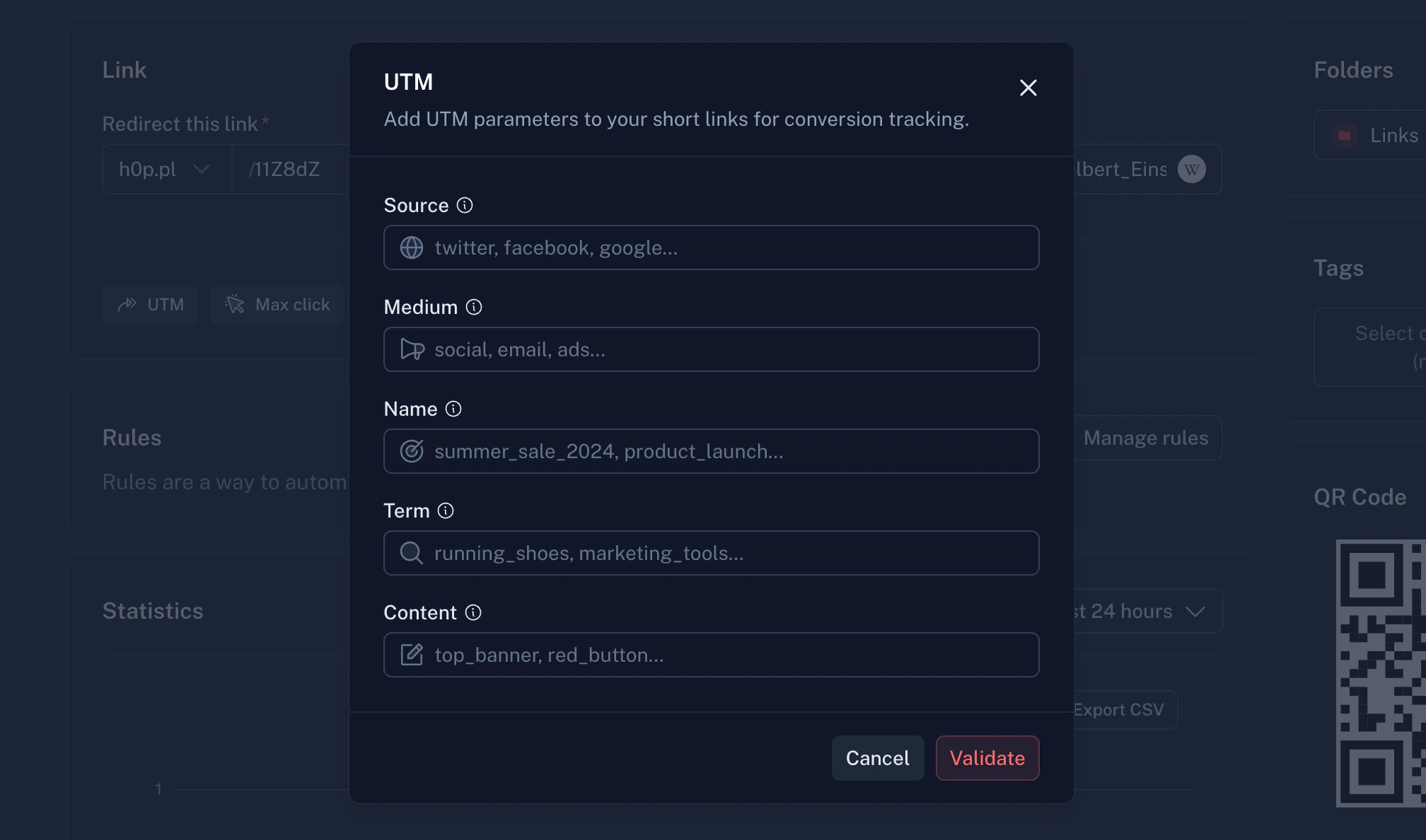
Every link has these core settings:UTM parameters
Add UTM parameters to track campaign performance:
UTM parameters are automatically appended to your destination URL. H0p tracks these in analytics.
Premium features
The following features require a Premium subscription.
Password protection
Restrict access to your links with a password:1
Enable password protection
In the link settings, toggle on Password Protection.
2
Set a password
Enter a password between 5 and 25 characters.
3
Share securely
Share the password separately from the link for security.
Expiration settings
Control when and how links become inactive:- Date expiration
- Click limit
Set a specific date and time when the link expires:
- Link works normally until the expiration date
- After expiration, visitors see an error page
- You can extend or remove expiration at any time
Cloaking
Display your destination in an iframe instead of redirecting:- Original URL stays in the browser address bar
- Content from destination loads in the page
- Useful for affiliate links or white-labeling
Custom meta tags
Control how your links appear when shared on social media: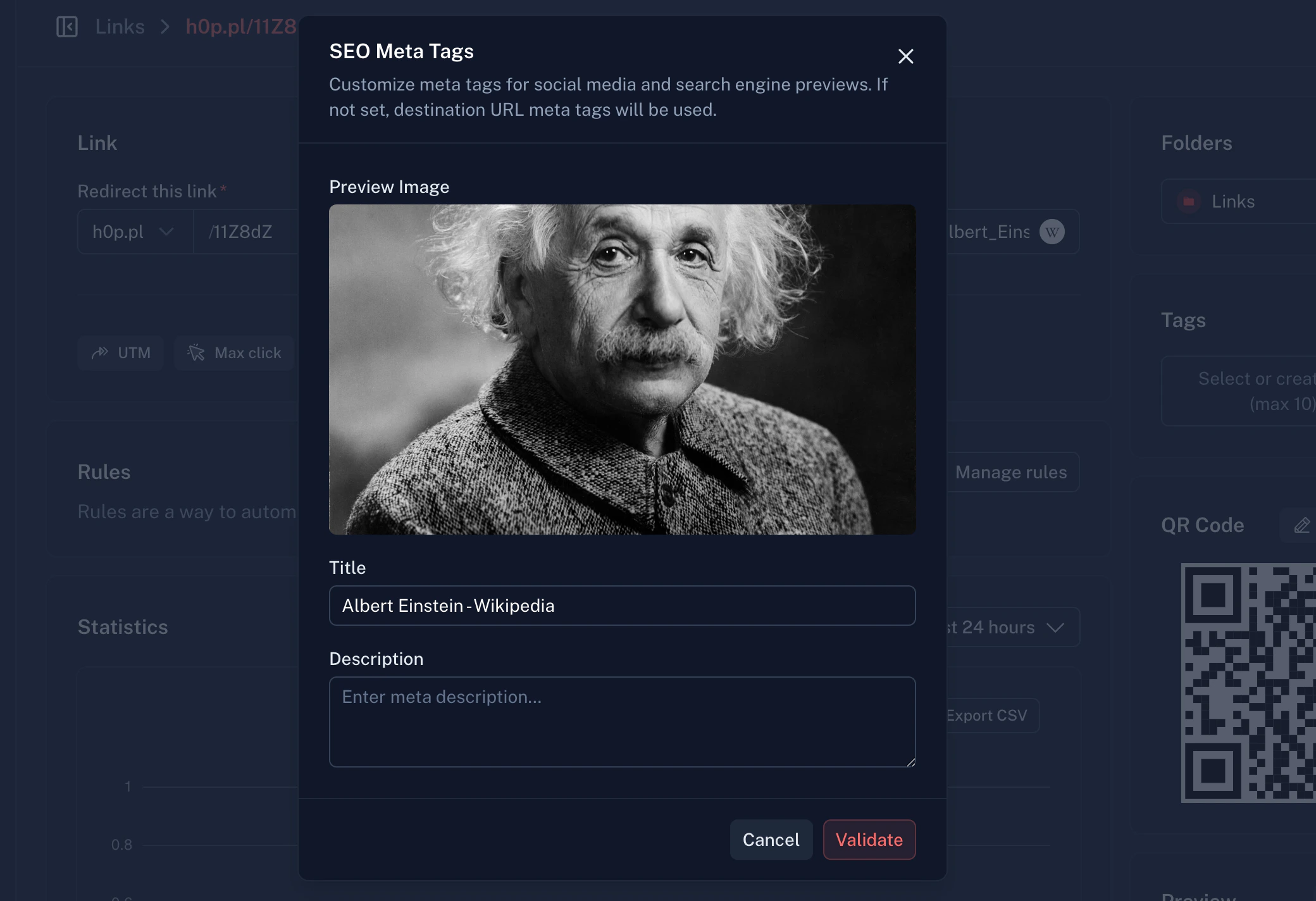
Smart routing rules
Route visitors to different destinations based on their characteristics:Geographic routing
Geographic routing
Send visitors to different URLs based on their country:
- Show localized content (
/envs/frvs/de) - Region-specific pricing pages
- Comply with regional regulations
Device routing
Device routing
Different destinations for different operating systems:
- iOS - App Store link
- Android - Play Store link
- Desktop - Website
Language routing
Language routing
Route based on browser language preferences:
- Match content to user’s preferred language
- Improve user experience without redirects
- Uses ISO 639-1 language codes (en, fr, es, etc.)
- Rules are evaluated in priority order (0 = highest)
- First matching rule determines the destination
- If no rules match, the default destination is used
Deep linking
Send mobile users directly into your app:Automatic deep linking
When your destination URL points to a supported app, H0p automatically generates deep links to redirect mobile users directly into the native app instead of the website. How it works:- You create a link to a supported platform (e.g.,
https://open.spotify.com/track/...) - H0p detects the platform and extracts the content ID
- When a mobile user clicks, they’re redirected to the native app
- Desktop users are redirected to the website as normal
We will add a lot of apps in the future, keep updated !
Music
- Spotify
- Apple Music
Video
- YouTube
- Twitch
Social
- TikTok
- X (Twitter)
Messaging
- Telegram
Shopping
- Amazon
Other
- Discord
Automatic deep linking works out of the box. No configuration required - just paste your destination URL and H0p handles the rest.
QR codes
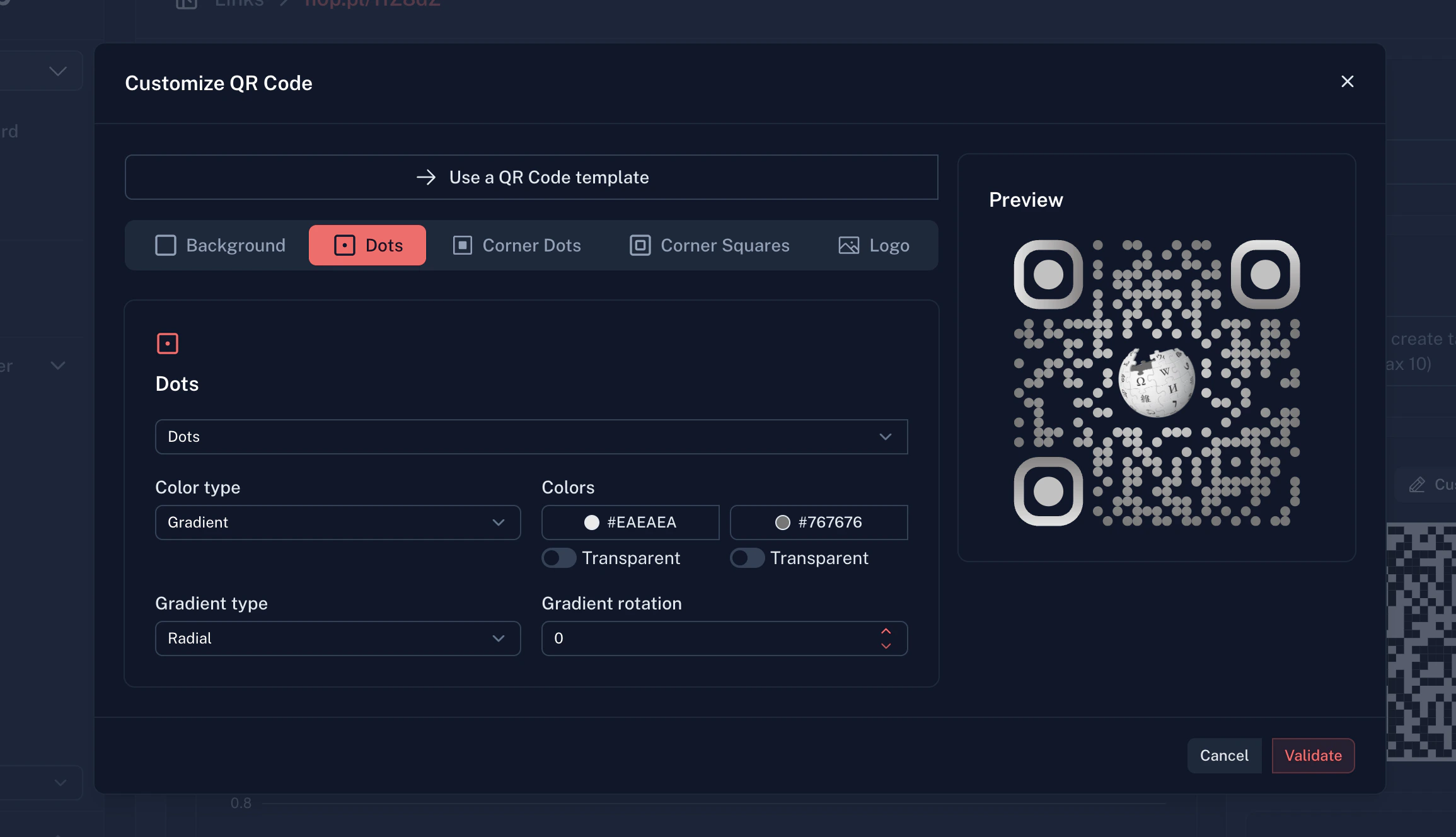
Every link includes an auto-generated QR code. Premium users can customize:Basic QR code
- Available to all users
- Standard black and white design
- PNG download
Customized QR code (Premium)
Colors
Custom colors for dots, background, and corners. Gradient support with linear or radial options.
Patterns
Different dot styles: square, rounded, dots, classy, classy-rounded, extra-rounded.
Logo overlay
Add your brand logo in the center. Supports PNG, JPEG, WebP, SVG (max 500KB).
Corner styles
Customize corner squares and dots with different shapes and colors.
Analytics
H0p tracks comprehensive analytics for every click:Available metrics
Data retention
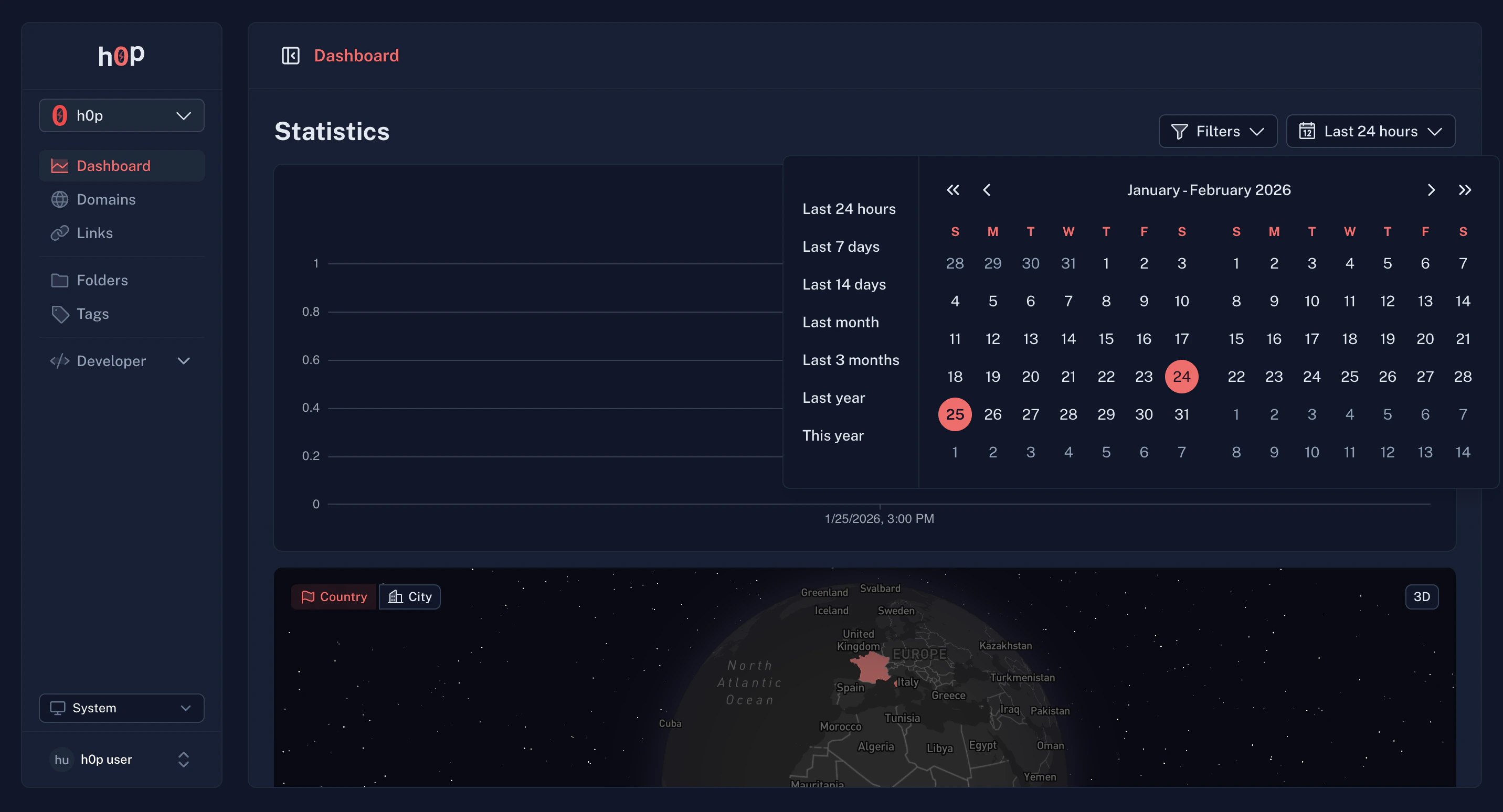
Viewing analytics
1
Go to Dashboard
The main dashboard shows aggregate analytics across all links.
2
Filter by link
Use filters to view analytics for specific links, domains, folders, or tags.
3
Adjust date range
Select your preferred time period using the date range picker.
Organization with folders and tags
Folders (Premium)
Group related links into folders:- Marketing - Campaign links
- Product - Product page links
- Support - Help center links
Tags
Add labels to links for flexible categorization:- A link can have multiple tags
- Filter your link list by tags
- Custom colors for visual organization
Best practices
Choose memorable slugs
Choose memorable slugs
Use short, descriptive slugs that hint at the content.
h0p.co/pricing is better than h0p.co/p1x2y3.Use consistent naming
Use consistent naming
Establish naming conventions for your team:
- Campaigns:
campaign-name-channel(e.g.,spring-sale-email) - Products:
product-feature(e.g.,api-docs)
Organize early
Organize early
Set up folders and tags before creating many links. Retroactive organization is tedious.
Test before sharing
Test before sharing
Click your link before sharing it widely. Verify the destination, analytics tracking, and any routing rules.
Monitor analytics
Monitor analytics
Check analytics regularly to understand what’s working. Use the data to optimize your campaigns.