

h0p.co. Turn h0p.co/my-link into links.yourcompany.com/my-link for a professional, trustworthy appearance.
Why use custom domains?
Brand recognition
Your domain reinforces your brand identity with every link shared.
Increased trust
Visitors are more likely to click links from familiar domains.
Better analytics
Filter analytics by domain to track performance across different brands or campaigns.
Professional image
Custom domains signal professionalism to partners and customers.
Adding a custom domain
1
Choose your subdomain
Decide which subdomain to use. Common choices:
links.yourcompany.comgo.yourcompany.coml.yourcompany.com
You can also use a root domain like
short.co, but subdomains are easier to configure.2
Add the domain in H0p
Go to Domains in the sidebar and click Add Domain.Enter your full domain (e.g.,
links.yourcompany.com).3
Configure DNS
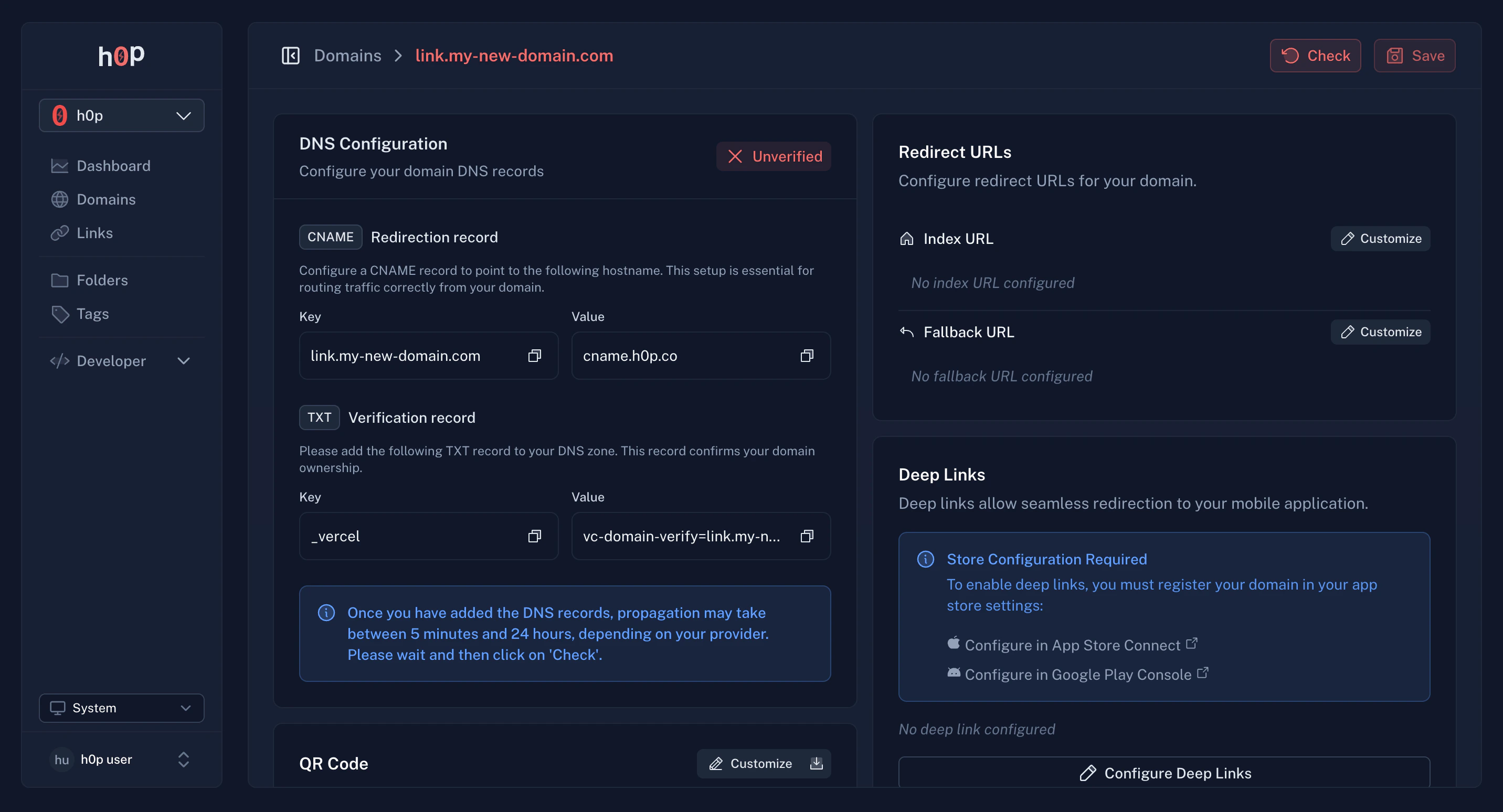
Add a CNAME record in your DNS provider pointing to H0p:
TXT record for verification:In some cases, H0p may also require you to add a TXT record to verify domain ownership. If prompted, add:
The exact value will be provided in the H0p dashboard when you add your domain.
4
Wait for propagation
DNS changes typically propagate within a few minutes, but can take up to 48 hours.
5
Verify the domain
Click Verify in H0p to confirm the DNS is configured correctly.Once verified, a green checkmark appears and your domain is ready to use.
DNS configuration by provider
- Cloudflare
- Namecheap
- GoDaddy
- Google Domains
- Log into your Cloudflare dashboard
- Select your domain
- Go to DNS > Records
- Click Add record
- Select CNAME type
- Enter
linksas the name (or your chosen subdomain) - Enter
cname.h0p.coas the target - Set proxy status to DNS only (gray cloud)
- Click Save
Domain settings
Once verified, configure your domain settings:Primary domain
Your first domain becomes the primary domain. When creating links without specifying a domain, the primary is used by default. To change the primary domain:- Go to Domains
- Click on the domain you want to make primary
- Toggle Primary Domain on
Index URL (Premium)
Set a destination for visitors who access your domain root (e.g.,links.yourcompany.com with no slug):
- Redirect to your main website
- Show a custom landing page
- Display a link list page
Fallback URL (Premium)
Set a destination for invalid or deleted links:- Instead of showing a 404 error
- Redirect to your homepage or help center
- Maintain a good user experience even for broken links
Deep linking
Deep linking requires a Premium subscription.
Apple App Site Association (iOS)
Enable Universal Links for iOS:1
Get your AASA file
Your iOS developer will provide an App Site Association file. It looks like:
2
Add to domain settings
In your domain settings, paste the AASA JSON into the Apple App Site Association field.
3
Verify configuration
H0p automatically serves this file at
/.well-known/apple-app-site-association.Test by visiting: https://links.yourcompany.com/.well-known/apple-app-site-associationAndroid Asset Links
Enable App Links for Android:1
Get your Asset Links file
Your Android developer will provide an Asset Links file:
2
Add to domain settings
In your domain settings, paste the Asset Links JSON into the Android Asset Links field.
3
Verify configuration
H0p serves this at
/.well-known/assetlinks.json.Test by visiting: https://links.yourcompany.com/.well-known/assetlinks.jsonQR code templates
Each domain can have a default QR code style that applies to all links on that domain:Consistent branding
All QR codes on this domain share the same style automatically.
Per-link overrides
Individual links can still have custom QR code settings.
Limits
Your primary domain (h0p.co or custom) doesn’t count against your limit.
Troubleshooting
Domain won't verify
Domain won't verify
Check your DNS configuration:You should see
- Ensure the CNAME points to
cname.h0p.co(noth0p.co) - Wait for DNS propagation (up to 48 hours)
- Check for typos in the subdomain name
cname.h0p.co in the response.SSL certificate errors
SSL certificate errors
H0p automatically provisions SSL certificates via Let’s Encrypt. This usually takes a few minutes after DNS verification.If you see SSL errors:
- Wait 5-10 minutes and try again
- Ensure your DNS is using DNS-only mode (not proxied)
- Contact support if the issue persists
Links not working on custom domain
Links not working on custom domain
Verify that:
- The domain is verified (green checkmark in H0p)
- The link was created on this domain (not h0p.co)
- DNS is pointing to the correct CNAME
Deep links not opening app
Deep links not opening app
For iOS:
- Verify AASA JSON is valid at
/.well-known/apple-app-site-association - Check that your app is configured for Universal Links
- Clear iOS cache and try again
- Verify Asset Links JSON at
/.well-known/assetlinks.json - Check that your app manifest includes the domain
- Test with the Digital Asset Links API tool
Best practices
Choose a short subdomain
Choose a short subdomain
l.company.com saves characters compared to links.company.com. Every character counts in short links.Use dedicated subdomains
Use dedicated subdomains
Avoid using your main domain root for short links. Use a subdomain to keep things organized.
Set up fallback URLs
Set up fallback URLs
Always configure a fallback URL to handle deleted or invalid links gracefully.
Test before launching
Test before launching
Create a test link and verify it works on desktop, iOS, and Android before using the domain for important campaigns.