> ## Documentation Index
> Fetch the complete documentation index at: https://docs.h0p.co/llms.txt
> Use this file to discover all available pages before exploring further.
# Quickstart
> Create your first short link in under 5 minutes
This guide walks you through creating your first short link with H0p. By the end, you'll have a working branded link with analytics tracking.
## Prerequisites
Before you begin, you'll need:
* A H0p account ([sign up here](https://dashboard.h0p.co/signup))
* A URL you want to shorten
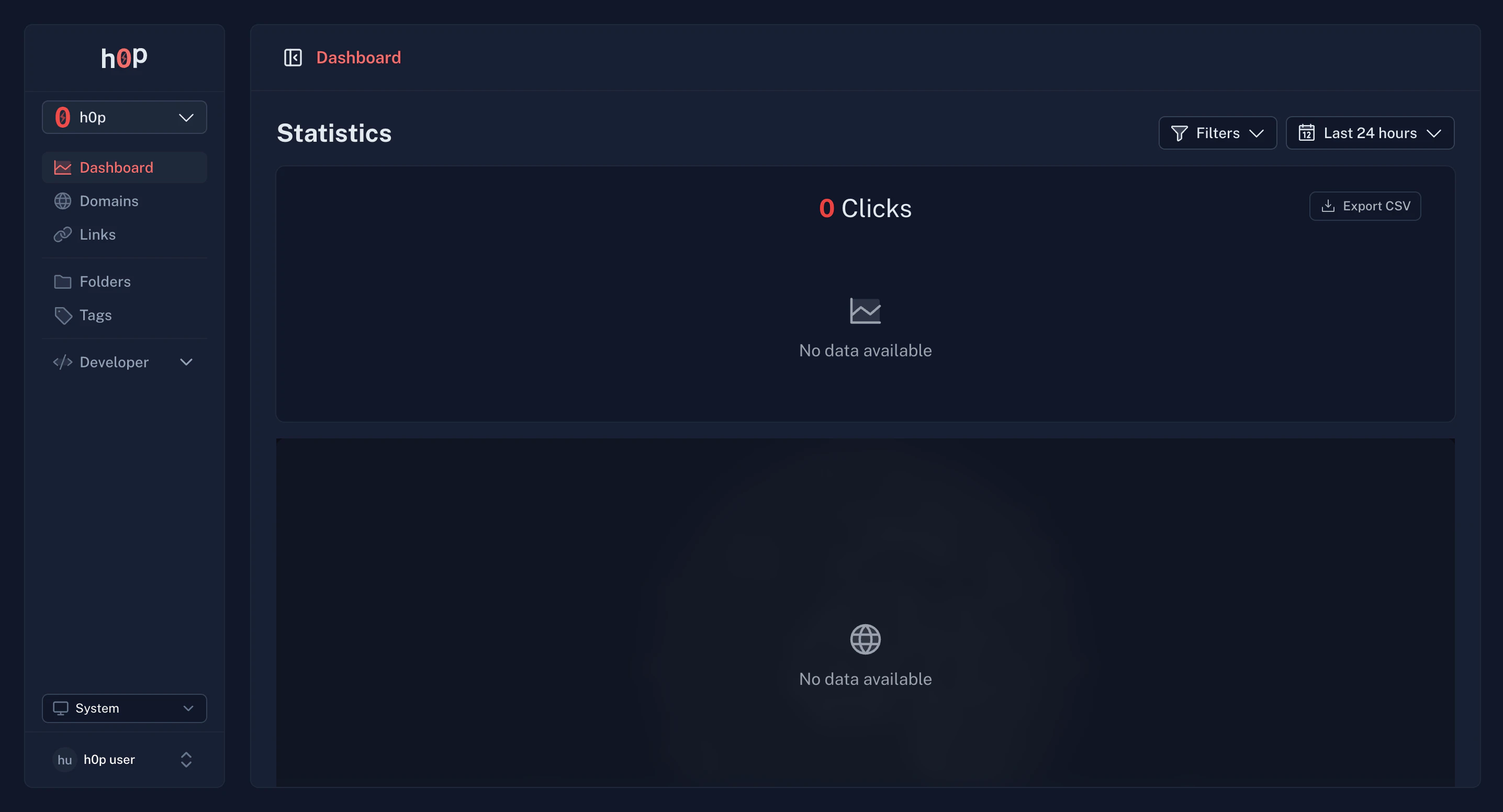
## Step 1: Sign up and access your dashboard
Go to [dashboard.h0p.co/signup](https://dashboard.h0p.co/signup) and create your account with your email and password.
Check your inbox for a verification email and click the link to verify your account.
Once verified, you'll be redirected to your dashboard. Your first organization is automatically created.
 ## Step 2: Create your first short link
In the sidebar, click on **Links** to open the links management page.
Click the **Create Link** button in the top right corner to open the link creation form.
Paste the URL you want to shorten in the **Destination** field. For example:
```
https://example.com/my-very-long-url-that-needs-shortening
```
By default, H0p generates a random 6-character slug. You can customize it by entering your preferred slug in the **Slug** field.
For example, if you want `h0p.co/my-product`, enter `my-product` as the slug.
Keep slugs short, memorable, and relevant to your content. Avoid special characters.
Click **Create** to save your short link. Your link is now live and ready to share.
## Step 2: Create your first short link
In the sidebar, click on **Links** to open the links management page.
Click the **Create Link** button in the top right corner to open the link creation form.
Paste the URL you want to shorten in the **Destination** field. For example:
```
https://example.com/my-very-long-url-that-needs-shortening
```
By default, H0p generates a random 6-character slug. You can customize it by entering your preferred slug in the **Slug** field.
For example, if you want `h0p.co/my-product`, enter `my-product` as the slug.
Keep slugs short, memorable, and relevant to your content. Avoid special characters.
Click **Create** to save your short link. Your link is now live and ready to share.
 ## Step 3: Share and track your link
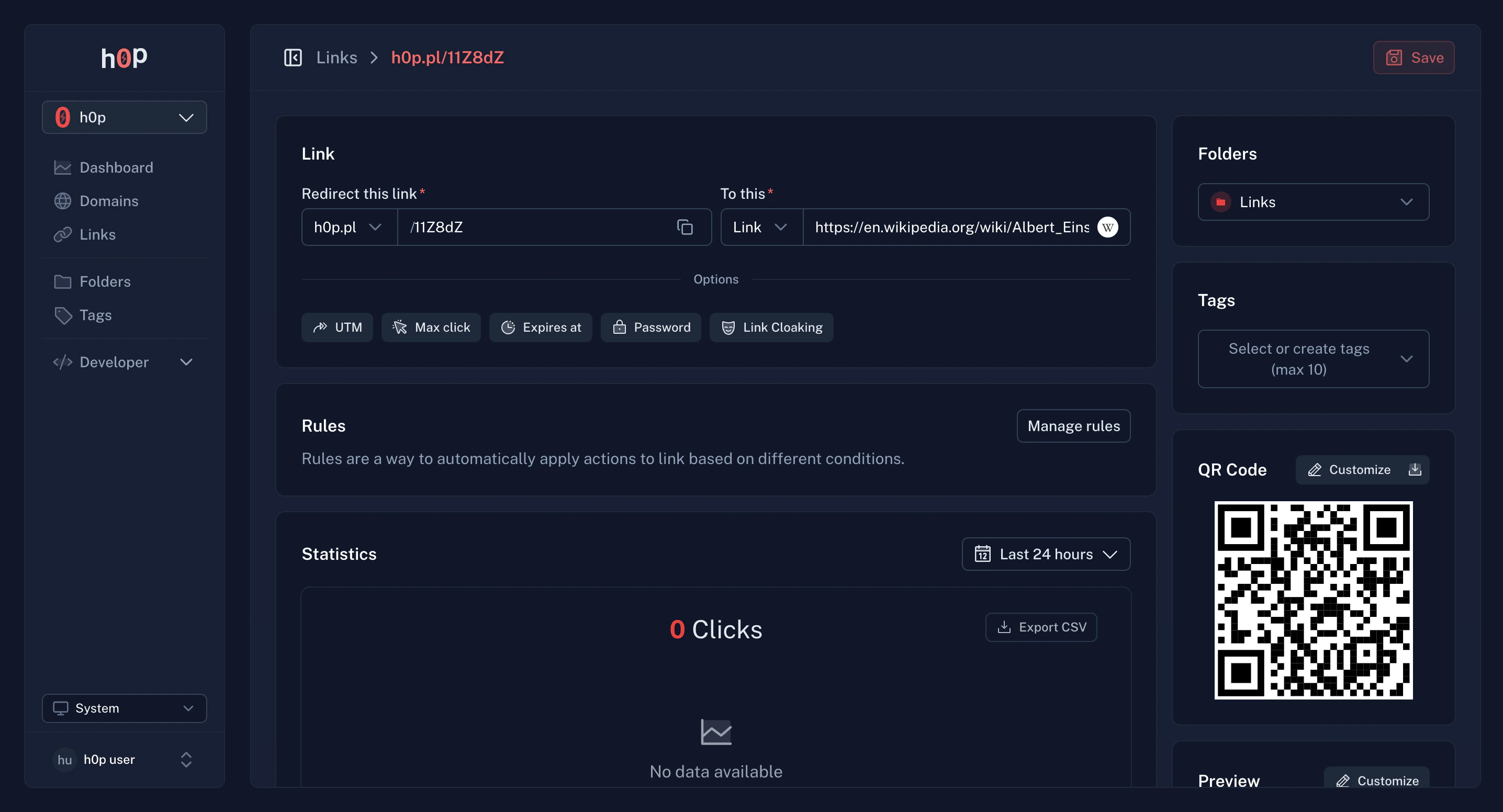
Once created, your link is ready to use:
Click the copy button next to your link to copy it to your clipboard.
Every link comes with an auto-generated QR code. Click the QR icon to download it.
### View analytics
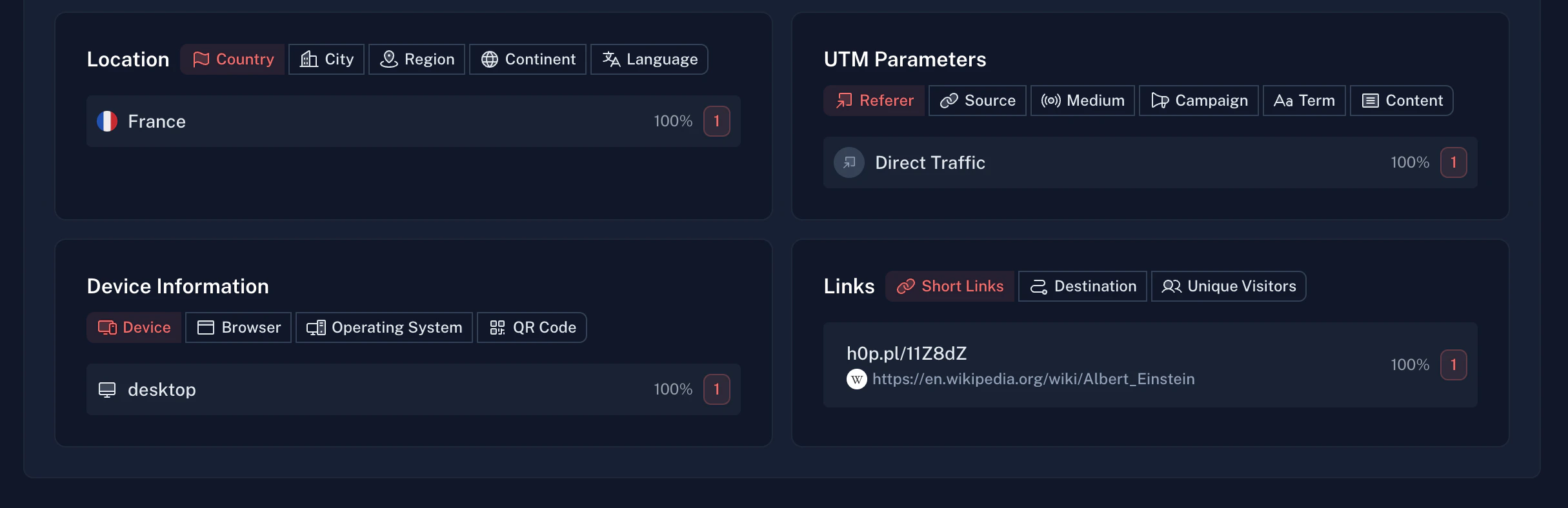
As people click your link, H0p tracks:
* **Total clicks** - Overall click count
* **Geographic data** - Countries, cities, and regions
* **Device info** - Desktop vs mobile, operating system, browser
* **Referrers** - Where traffic is coming from
* **UTM parameters** - Campaign tracking data
## Step 3: Share and track your link
Once created, your link is ready to use:
Click the copy button next to your link to copy it to your clipboard.
Every link comes with an auto-generated QR code. Click the QR icon to download it.
### View analytics
As people click your link, H0p tracks:
* **Total clicks** - Overall click count
* **Geographic data** - Countries, cities, and regions
* **Device info** - Desktop vs mobile, operating system, browser
* **Referrers** - Where traffic is coming from
* **UTM parameters** - Campaign tracking data
 ## Step 4: Add a custom domain (optional)
Want to use your own domain instead of `h0p.co`? Here's how:
Navigate to **Domains** in the sidebar.
Click **Add Domain** and enter your custom domain (e.g., `links.yourcompany.com`).
Add the CNAME record shown in your DNS provider. This typically takes a few minutes to propagate.
Click **Verify** to confirm your domain is properly configured.
Learn more about [custom domains](/platform/domains).
## What's next?
Now that you've created your first link, explore these features:
Learn about advanced link features like password protection, expiration, and smart routing.
Set up your own branded domain for professional short links.
Get real-time notifications when links are clicked or modified.
Automate link creation with our REST API.
## Common questions
Links are permanent by default and never expire. With Premium, you can set expiration dates or click limits.
Yes, you can edit the destination URL, slug, and all other settings at any time from the link details page.
Deleted links return a 404 error. If your domain has a fallback URL configured, visitors will be redirected there instead.
Analytics are updated in real-time. Geographic data is provided by Vercel and is accurate at the country and city level.
## Step 4: Add a custom domain (optional)
Want to use your own domain instead of `h0p.co`? Here's how:
Navigate to **Domains** in the sidebar.
Click **Add Domain** and enter your custom domain (e.g., `links.yourcompany.com`).
Add the CNAME record shown in your DNS provider. This typically takes a few minutes to propagate.
Click **Verify** to confirm your domain is properly configured.
Learn more about [custom domains](/platform/domains).
## What's next?
Now that you've created your first link, explore these features:
Learn about advanced link features like password protection, expiration, and smart routing.
Set up your own branded domain for professional short links.
Get real-time notifications when links are clicked or modified.
Automate link creation with our REST API.
## Common questions
Links are permanent by default and never expire. With Premium, you can set expiration dates or click limits.
Yes, you can edit the destination URL, slug, and all other settings at any time from the link details page.
Deleted links return a 404 error. If your domain has a fallback URL configured, visitors will be redirected there instead.
Analytics are updated in real-time. Geographic data is provided by Vercel and is accurate at the country and city level.