> ## Documentation Index
> Fetch the complete documentation index at: https://docs.h0p.co/llms.txt
> Use this file to discover all available pages before exploring further.
# Authentication
> Secure your API requests with API keys
The H0p API uses API keys for authentication. Each key is scoped to an organization and has configurable permissions, giving you granular control over what each integration can do.
## API key overview
API keys provide:
* **Organization scope** - Each key belongs to one organization
* **Granular permissions** - Control exactly what each key can access
* **Two key types** - User keys tied to your account, bot keys tied to your organization
* **Secure generation** - Cryptographically random, shown only once
## Key types
H0p offers two types of API keys for different use cases:
**User keys** are linked to your personal account:
| Property | Description |
| ----------- | --------------------------------------- |
| Limit | One key per user per organization |
| Attribution | Actions appear under your name |
| Lifecycle | Deleted when you leave the organization |
| Best for | Development, testing, personal scripts |
```bash theme={null}
# Example: User key for development
x-api-key: h0p_user_abc123...
```
**Bot keys** create non-human accounts associated with API keys:
| Property | Description |
| ----------- | ------------------------------------------------------- |
| Limit | One bot key per organization |
| Attribution | Actions appear under "Bot" user |
| Lifecycle | Survives team member changes |
| Best for | Integrations that should persist independently of staff |
Unlike user keys that are tied to your personal account, bot keys provide organization-scoped credentials that persist independently of staff transitions. This avoids security risks when employees leave or change roles.
Bot users don't count toward your organization's member limit.
```bash theme={null}
# Example: Bot key
x-api-key: h0p_bot_xyz789...
```
## Creating an API key
In the dashboard, go to **Developer Tools** > **API Keys**.
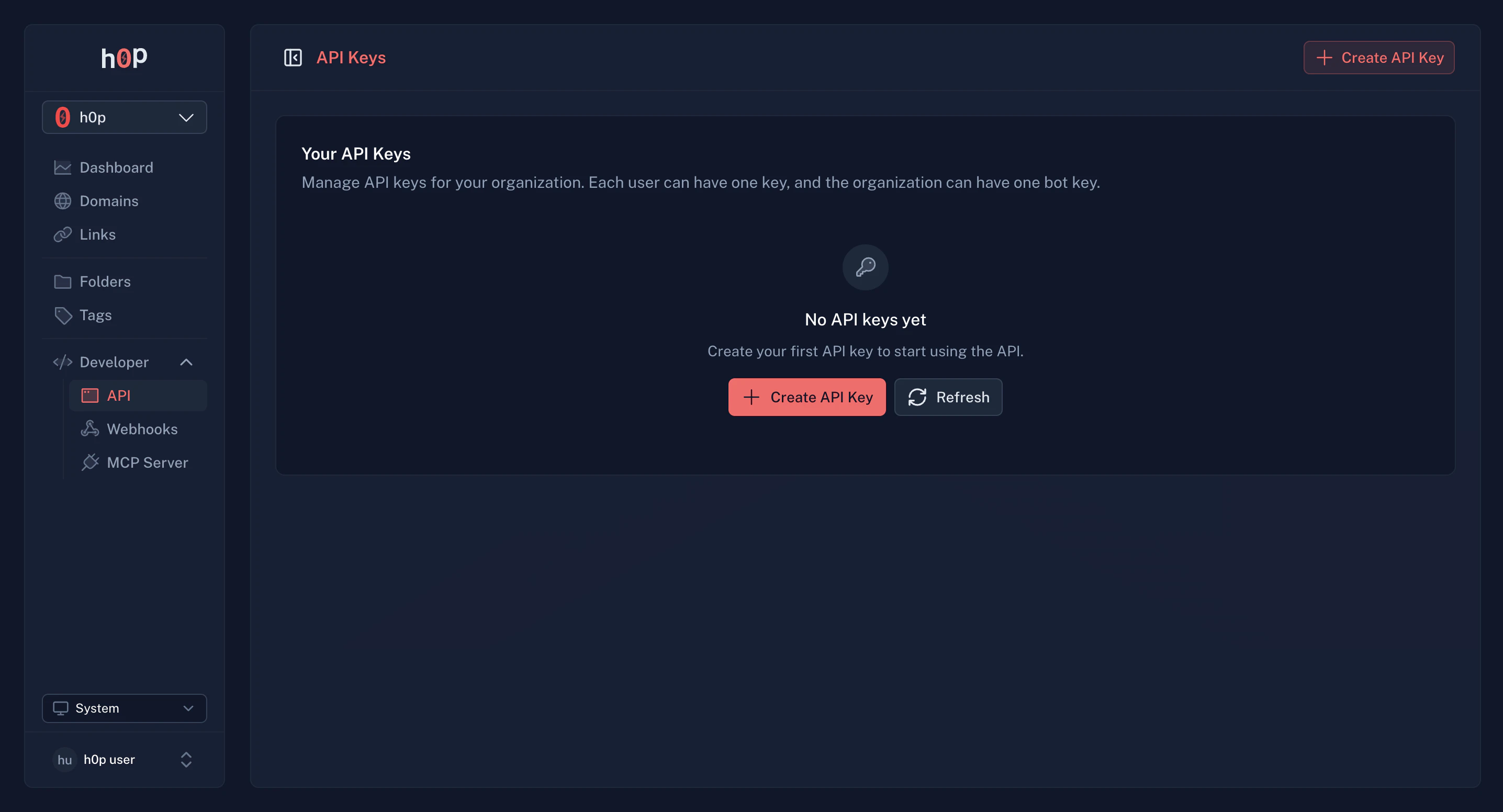 Click the **Create API Key** button to open the creation form.
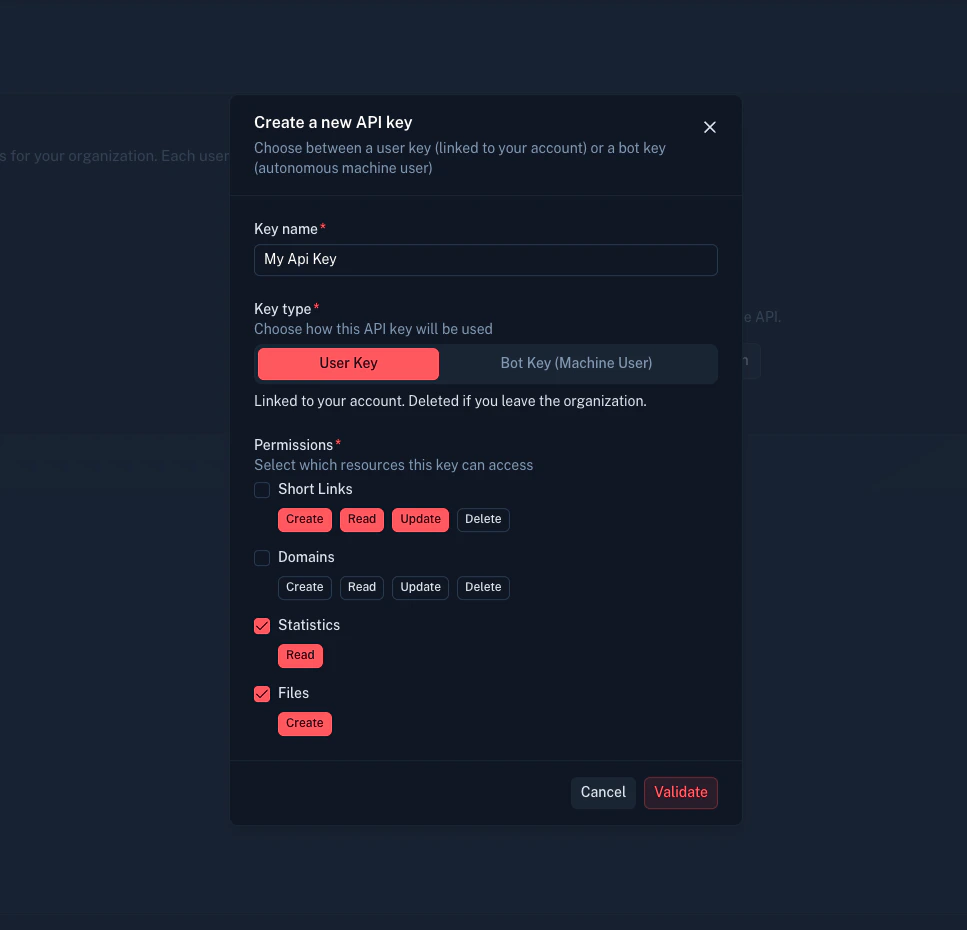 Select whether to create a **User key** or **Bot key**:
* **User key** - Tied to your account, deleted if you leave the organization
* **Bot key** - Tied to the organization, persists independently of team members
Select the permissions your key needs. See [Permissions](#permissions) below for details.
Follow the principle of least privilege. Only grant permissions your integration actually needs.
Your API key is displayed only once. Copy it immediately and store it securely.
Select whether to create a **User key** or **Bot key**:
* **User key** - Tied to your account, deleted if you leave the organization
* **Bot key** - Tied to the organization, persists independently of team members
Select the permissions your key needs. See [Permissions](#permissions) below for details.
Follow the principle of least privilege. Only grant permissions your integration actually needs.
Your API key is displayed only once. Copy it immediately and store it securely.
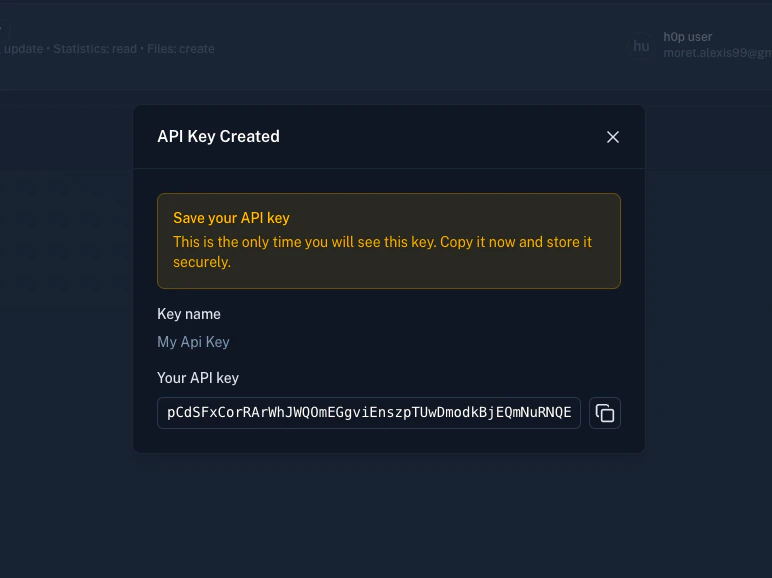 Your API key won't be shown again. If you lose it, you'll need to create a new one.
## Permissions
API keys use a granular permission system. Each key can be granted specific actions for different resources.
### Available resources
| Resource | Description |
| ------------ | ---------------------------------------- |
| `shortLinks` | Create, read, update, delete short links |
| `domains` | Manage custom domains |
| `stats` | Access analytics and click data |
| `files` | Upload files (QR logos, social images) |
| `apiKeys` | Manage API keys (admin only) |
| `webhooks` | Configure webhook endpoints |
### Available actions
| Action | Description |
| -------- | ------------------------- |
| `create` | Create new resources |
| `read` | View existing resources |
| `update` | Modify existing resources |
| `delete` | Remove resources |
### Example permission configurations
**Read-only analytics:**
```json theme={null}
{
"stats": ["read"],
"shortLinks": ["read"],
"domains": ["read"]
}
```
**Link management:**
```json theme={null}
{
"shortLinks": ["create", "read", "update", "delete"],
"domains": ["read"],
"files": ["create", "read"]
}
```
**Full access:**
```json theme={null}
{
"shortLinks": ["create", "read", "update", "delete"],
"domains": ["create", "read", "update", "delete"],
"stats": ["read"],
"files": ["create", "read", "delete"],
"webhooks": ["create", "read", "update", "delete"]
}
```
## Using your API key
Include your API key in the `x-api-key` header with every request:
```bash theme={null}
curl -X GET "https://api.h0p.co/short-link/list?page=0&limit=10" \
-H "x-api-key: YOUR_API_KEY"
```
### POST request example
```bash theme={null}
curl -X POST "https://api.h0p.co/short-link" \
-H "x-api-key: YOUR_API_KEY" \
-H "Content-Type: application/json" \
-d '{
"destination": {
"type": "link",
"value": "https://example.com"
},
"slug": "my-link"
}'
```
### Using environment variables
Never hardcode API keys. Use environment variables:
```bash theme={null}
export H0P_API_KEY="your-api-key"
curl -X GET "https://api.h0p.co/short-link/list" \
-H "x-api-key: $H0P_API_KEY"
```
```powershell theme={null}
$env:H0P_API_KEY = "your-api-key"
curl -X GET "https://api.h0p.co/short-link/list" `
-H "x-api-key: $env:H0P_API_KEY"
```
```javascript theme={null}
// .env file
H0P_API_KEY=your-api-key
// JavaScript
const apiKey = process.env.H0P_API_KEY;
fetch('https://api.h0p.co/short-link/list', {
headers: { 'x-api-key': apiKey }
});
```
```python theme={null}
import os
import requests
api_key = os.environ['H0P_API_KEY']
response = requests.get(
'https://api.h0p.co/short-link/list',
headers={'x-api-key': api_key}
)
```
## Managing API keys
### View your keys
See all your organization's API keys in **Developer Tools** > **API Keys**:
Your API key won't be shown again. If you lose it, you'll need to create a new one.
## Permissions
API keys use a granular permission system. Each key can be granted specific actions for different resources.
### Available resources
| Resource | Description |
| ------------ | ---------------------------------------- |
| `shortLinks` | Create, read, update, delete short links |
| `domains` | Manage custom domains |
| `stats` | Access analytics and click data |
| `files` | Upload files (QR logos, social images) |
| `apiKeys` | Manage API keys (admin only) |
| `webhooks` | Configure webhook endpoints |
### Available actions
| Action | Description |
| -------- | ------------------------- |
| `create` | Create new resources |
| `read` | View existing resources |
| `update` | Modify existing resources |
| `delete` | Remove resources |
### Example permission configurations
**Read-only analytics:**
```json theme={null}
{
"stats": ["read"],
"shortLinks": ["read"],
"domains": ["read"]
}
```
**Link management:**
```json theme={null}
{
"shortLinks": ["create", "read", "update", "delete"],
"domains": ["read"],
"files": ["create", "read"]
}
```
**Full access:**
```json theme={null}
{
"shortLinks": ["create", "read", "update", "delete"],
"domains": ["create", "read", "update", "delete"],
"stats": ["read"],
"files": ["create", "read", "delete"],
"webhooks": ["create", "read", "update", "delete"]
}
```
## Using your API key
Include your API key in the `x-api-key` header with every request:
```bash theme={null}
curl -X GET "https://api.h0p.co/short-link/list?page=0&limit=10" \
-H "x-api-key: YOUR_API_KEY"
```
### POST request example
```bash theme={null}
curl -X POST "https://api.h0p.co/short-link" \
-H "x-api-key: YOUR_API_KEY" \
-H "Content-Type: application/json" \
-d '{
"destination": {
"type": "link",
"value": "https://example.com"
},
"slug": "my-link"
}'
```
### Using environment variables
Never hardcode API keys. Use environment variables:
```bash theme={null}
export H0P_API_KEY="your-api-key"
curl -X GET "https://api.h0p.co/short-link/list" \
-H "x-api-key: $H0P_API_KEY"
```
```powershell theme={null}
$env:H0P_API_KEY = "your-api-key"
curl -X GET "https://api.h0p.co/short-link/list" `
-H "x-api-key: $env:H0P_API_KEY"
```
```javascript theme={null}
// .env file
H0P_API_KEY=your-api-key
// JavaScript
const apiKey = process.env.H0P_API_KEY;
fetch('https://api.h0p.co/short-link/list', {
headers: { 'x-api-key': apiKey }
});
```
```python theme={null}
import os
import requests
api_key = os.environ['H0P_API_KEY']
response = requests.get(
'https://api.h0p.co/short-link/list',
headers={'x-api-key': api_key}
)
```
## Managing API keys
### View your keys
See all your organization's API keys in **Developer Tools** > **API Keys**:
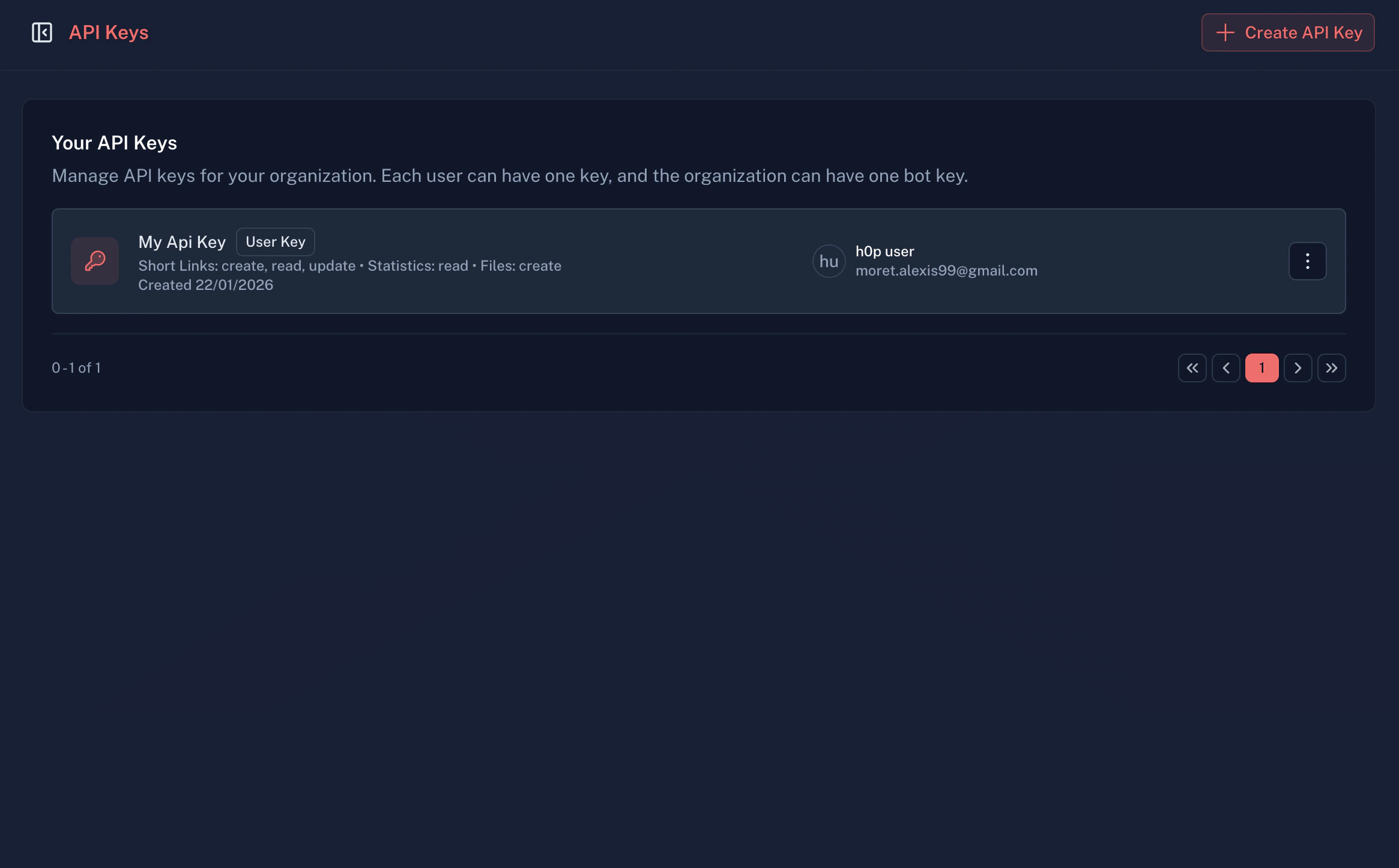 The list shows:
* Key name and type
* Associated user (or "Bot" for bot keys)
* Permissions summary
* Creation date
* Last 4 characters for identification
### Update key permissions
1. Click on a key to open its details
2. Modify the permissions as needed
3. Save changes
### Revoke a key
If a key is compromised or no longer needed:
1. Go to **Developer Tools** > **API Keys**
2. Find the key you want to revoke
3. Click the **Delete** button
4. Confirm the deletion
The list shows:
* Key name and type
* Associated user (or "Bot" for bot keys)
* Permissions summary
* Creation date
* Last 4 characters for identification
### Update key permissions
1. Click on a key to open its details
2. Modify the permissions as needed
3. Save changes
### Revoke a key
If a key is compromised or no longer needed:
1. Go to **Developer Tools** > **API Keys**
2. Find the key you want to revoke
3. Click the **Delete** button
4. Confirm the deletion
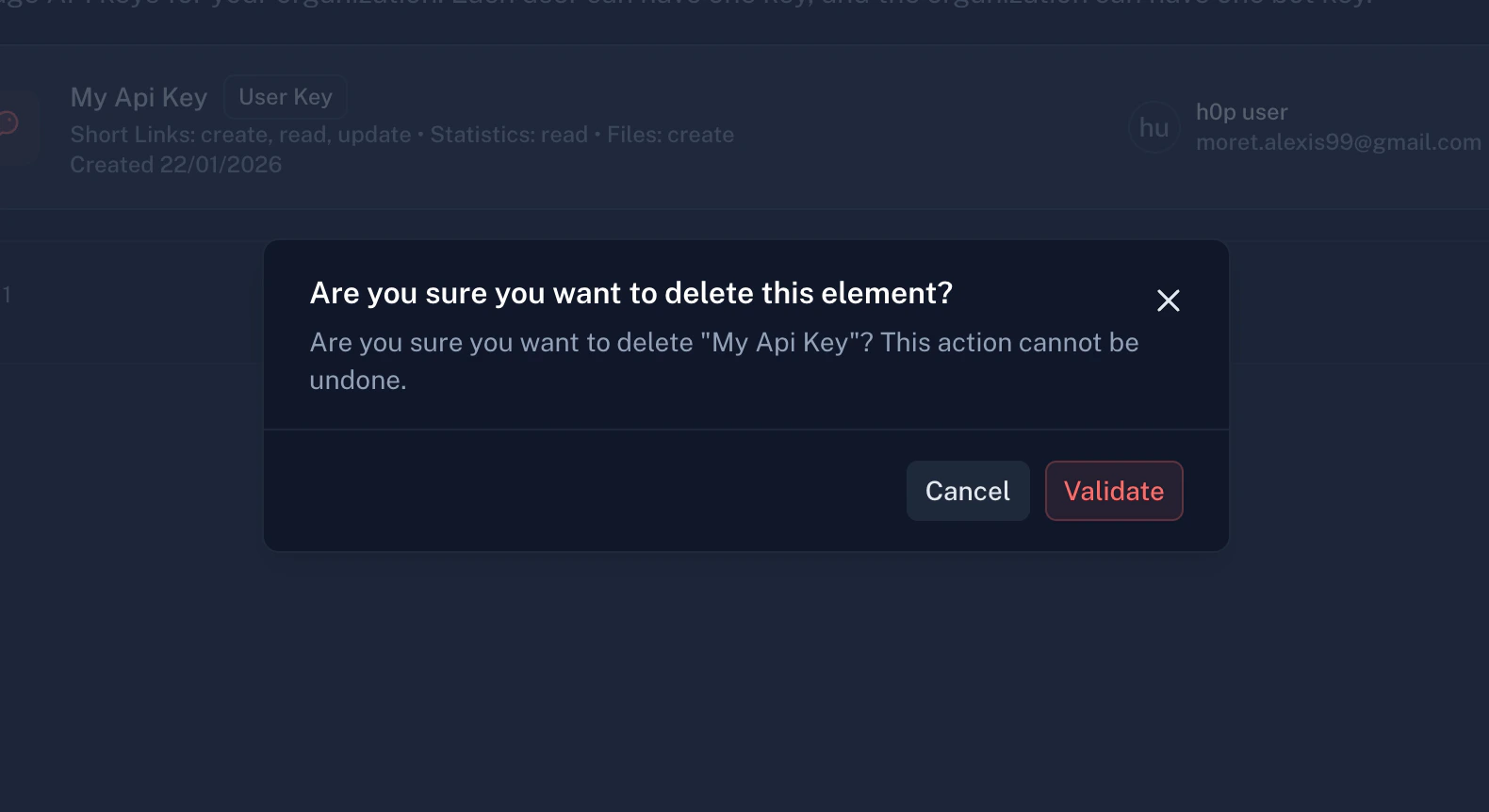 Revoking a key is immediate and irreversible. Any application using this key will stop working instantly.
## Security best practices
* Use environment variables, not hardcoded values
* Never commit API keys to version control
* Use a secrets manager for production (AWS Secrets Manager, HashiCorp Vault, etc.)
```bash theme={null}
# Good
export H0P_API_KEY="your-key"
# Bad - never do this
const apiKey = "your-key" // Hardcoded!
```
* Never expose keys in client-side code (browser JavaScript, mobile apps)
* Don't share keys in Slack, email, or other channels
* Make API calls from server-side code only
Only grant the permissions your integration needs:
* Analytics dashboard? `stats: ["read"]` only
* Link creation tool? `shortLinks: ["create"]` only
* Don't grant `delete` unless necessary
* Create new keys periodically (e.g., quarterly)
* Revoke old keys after migrating to new ones
* Immediately revoke any potentially compromised keys
Create distinct keys for:
* Development
* Staging
* Production
This limits blast radius if a key is compromised and makes it easier to track usage.
* Review API usage in the dashboard
* Watch for unexpected activity patterns
* Set up webhooks for audit logging
## Error handling
### 401 Unauthorized
Returned when authentication fails:
```json theme={null}
{
"error": {
"code": "UNAUTHORIZED",
"message": "Invalid or missing API key"
}
}
```
**Common causes:**
* Missing `x-api-key` header
* Typo in the API key
* Key has been revoked
* Using wrong header name (use `x-api-key`, not `Authorization`)
### 403 Forbidden
Returned when your key doesn't have permission:
```json theme={null}
{
"error": {
"code": "ACTION_NOT_ALLOWED",
"message": "Your API key doesn't have permission for this action"
}
}
```
**Common causes:**
* Key doesn't have the required permission for this resource/action
* Trying to access resources from another organization
### Handling auth errors
```javascript theme={null}
async function makeRequest(endpoint, options = {}) {
const response = await fetch(`https://api.h0p.co${endpoint}`, {
...options,
headers: {
'x-api-key': process.env.H0P_API_KEY,
'Content-Type': 'application/json',
...options.headers
}
});
if (response.status === 401) {
throw new Error('Invalid API key. Check your credentials.');
}
if (response.status === 403) {
const error = await response.json();
throw new Error(`Permission denied: ${error.error.message}`);
}
if (!response.ok) {
const error = await response.json();
throw new Error(error.error?.message || 'Request failed');
}
return response.json();
}
```
## Next steps
Make your first API call.
Learn about all available endpoints.
Set up real-time notifications.
Get help with authentication issues.
Revoking a key is immediate and irreversible. Any application using this key will stop working instantly.
## Security best practices
* Use environment variables, not hardcoded values
* Never commit API keys to version control
* Use a secrets manager for production (AWS Secrets Manager, HashiCorp Vault, etc.)
```bash theme={null}
# Good
export H0P_API_KEY="your-key"
# Bad - never do this
const apiKey = "your-key" // Hardcoded!
```
* Never expose keys in client-side code (browser JavaScript, mobile apps)
* Don't share keys in Slack, email, or other channels
* Make API calls from server-side code only
Only grant the permissions your integration needs:
* Analytics dashboard? `stats: ["read"]` only
* Link creation tool? `shortLinks: ["create"]` only
* Don't grant `delete` unless necessary
* Create new keys periodically (e.g., quarterly)
* Revoke old keys after migrating to new ones
* Immediately revoke any potentially compromised keys
Create distinct keys for:
* Development
* Staging
* Production
This limits blast radius if a key is compromised and makes it easier to track usage.
* Review API usage in the dashboard
* Watch for unexpected activity patterns
* Set up webhooks for audit logging
## Error handling
### 401 Unauthorized
Returned when authentication fails:
```json theme={null}
{
"error": {
"code": "UNAUTHORIZED",
"message": "Invalid or missing API key"
}
}
```
**Common causes:**
* Missing `x-api-key` header
* Typo in the API key
* Key has been revoked
* Using wrong header name (use `x-api-key`, not `Authorization`)
### 403 Forbidden
Returned when your key doesn't have permission:
```json theme={null}
{
"error": {
"code": "ACTION_NOT_ALLOWED",
"message": "Your API key doesn't have permission for this action"
}
}
```
**Common causes:**
* Key doesn't have the required permission for this resource/action
* Trying to access resources from another organization
### Handling auth errors
```javascript theme={null}
async function makeRequest(endpoint, options = {}) {
const response = await fetch(`https://api.h0p.co${endpoint}`, {
...options,
headers: {
'x-api-key': process.env.H0P_API_KEY,
'Content-Type': 'application/json',
...options.headers
}
});
if (response.status === 401) {
throw new Error('Invalid API key. Check your credentials.');
}
if (response.status === 403) {
const error = await response.json();
throw new Error(`Permission denied: ${error.error.message}`);
}
if (!response.ok) {
const error = await response.json();
throw new Error(error.error?.message || 'Request failed');
}
return response.json();
}
```
## Next steps
Make your first API call.
Learn about all available endpoints.
Set up real-time notifications.
Get help with authentication issues.